Popular Posts

Showing posts with label Microsoft. Show all posts

Sunday, 19 December 2010

LOCK FOLDER WITHOUT ANY SOFTWARE


To do this just follow the steps given below
1. Suppose you want to lock the folder "games" in d: which has the path D:\Games.

2. In the same drive create a text file and type 
ren games games.{21EC2020-3AEA-1069-A2DD-08002B30309D}

3. Now save this text file as loc.bat

4. create another text file and type in it
ren games.{21EC2020-3AEA-1069-A2DD-08002B30309D} games

5. Now save this text file as key.bat

6. Now you can see 2 batch files loc and key.

7. Now press loc file and the folder games will change to control panel and you cannot view its contents. Press key file and you will get back your original folder.

Friday, 10 December 2010

Rumors of windows 8 launch in 2012..

People who are eagerly waiting for some news about Microsoft's upcoming OS "Windows 8", should get excited about today news.

Our friend site "winrumors" along with "windows8italia" is reporting that Windows 8 will sport a new GUI codenamed "Wind".

    Microsoft's next-generation Windows operating system will be 32-bit and 64-bit with two separate interfaces. The main interface will be codenamed "Wind" and will initially only be supported by high-end notebook and desktop PCs with dedicated video cards
    . The interface will require around 170MB of video memory.

    "Wind" will only activate on 64-bit copies of Windows 8 and will be fully 3D.

    "Wind" will be "fully dynamic" and able to adapt to user habits. Icons and shortcuts will adapt to different usage scenarios to speed up daily tasks. Windows 8 is also rumored to include a new fast hibernation system. The system will hibernate in around three to six seconds and save all open documents and running tasks.

A recent release of NVIDIA’s Quadro 265 driver specifically references a new kernel with the number 6.2 (Windows 7 is 6.1) and includes references to Windows 8:

    NVIDIA Windows Vista / 7 / 8 (64 bit) Display INF file
    DiskID1 = "NVIDIA Windows Vista / 7 / 8 (64 bit) Driver Library Installation Disk 1"
    NVIDIA_WIN8 = "NVIDIA"

So following are some interesting things about the claimed Windows 8 GUI codenamed "Wind":

    * It'll have 2 separate interfaces for 32-bit and 64-bit editions which is quite interesting and new thing.
    * New new GUI "Wind" will only activate in 64-bit edition. May be we find some way to activate in 32-bit editions as well. Who knows? ;)
    * "Wind" will be fully dynamic. Not sure but it might adopt Windows Phone 7 interface.
    * "Wind" will be able to adopt user habits. That sounds really impressive. :)

Friday, 3 December 2010

Microsoft now offers student discounts on Windows 7 in more countries

Microsoft loves to gives students great deals on their software, and over at the Windows Team blog they've got some good news for our international readers. If you're a student and looking for a nice, cheap copy of Windows 7 you're in luck!

The same program which allows U.S. students to pick up Windows 7 Professional for $29.99 has been expanded to eleven additional countries: Italy, Belgium, New Zealand, Thailand, Spain, Portugal (all available now), Sweden, Denmark (available November 4th), Norway, and Ireland (available November 11th).

If you take advantage of the offer, don't forget about this handy tool which helps you create a bootable DVD or USB flash drive from the disc image file (.ISO) you'll be downloading.

Hit up the official Microsoft post for the purchase link for your country.

Microsoft releases details of the upcoming Silverlight 5

Silverlight 5
Speaking at the Silverlight Firestarter conference yesterday, Scott Guthrie, the vice president of Microsoft's Developer Division, reassured the masses of Silverlight's future by detailing the exciting new features in Silverlight in 2011.
On the application-development front, there's a ton of exciting new features. Font rendering has been improved (which is no surprise, given Silverlight's new home on the Windows Phone 7), lower-latency networking has been added,immediate mode graphics are now possible (cue some very sexy games and visualizations), and also some improved sandboxing features have been thrown in. Scott mentions better integration with IE9's hardware acceleration, too, but no real details are given.

Top of the bill, media-wise, is GPU-accelerated video decoding (I thought Silverlight 4 already did that?). There's a cool new feature called Trickplay that lets you alter the playback speed of Silverlight videos -- with pitch correction! (I've wanted this feature for so long -- why has Silverlight beaten you to it, Flash?) Finally, there's improved "power awareness," which will stop the screensaver kicking in while a Silverlight video is playing.

Exciting stuff, but we'll have to wait until "the first half of 2011" for the first beta!

Sunday, 14 November 2010

How to change the default location for installing applications in Windows

One way to do this is to install applications on a drive other than the drive where Windows is installed. So by default, most computers will have Windows installed on the C partition and most programs will be installed in C:\Program Files.
Of course, whenever you install an application, there are some system files that have to be installed into Windows directories on your C drive, but it still can take a major load off your Windows partition if you’re running very data intensive applications like Photoshop, video editing software, etc.
If you have a desktop computer, it might actually be much better because you could pop in a secondary drive that is much faster than the original drive. Also, you might be asking yourself “Well why would I change the path in the registry when I can choose the path I want to install to during the program setup?”
Good question! Well, for two reasons: some programs don’t give you an option of where to install the app to and sometimes you might just forget to change it manually.

How to change default install path for applications in Windows

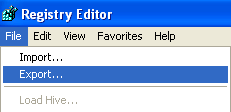
You can do this by making a quick change to the registry. Firstly, you’re going to want to make a backup of your registry before making any changes. You can back it up by opening the registry editor and choosing File and then Export.
export registry
To get into the registry, click on Start, then click on Run and type in regedit. In Windows Vista, just type in regedit into the instant search box and press Enter. Now navigate to the following key:
HKEY_LOCAL_MACHINE\SOFTWARE\Microsoft\Windows\CurrentVersion
Now look for a key in the right pane called ProgramFilesDir. You should see that the value is C:\Program Files.
programfilesdir
Now you can simply double-click on the value and edit it to whatever you like, i.e. “D:\My Apps\”. Whenever you install a new program, Windows will use the new location as the default installation directory. Nifty! Source: TechBold
[tags]change default installation directory, windows install path, change default install path[/tags]

Aerotuner fine tune aero theme settings in windows 7


AeroTuner is another excellent tool created by our friend "hb860". It allows you to tweak various Aero theme options which can't be customized by default.
With the help of this tool:
  • You can enable/disable transparency in windows.
  • You can customize color balance
  • You can customize after glow color balance
  • You can customize blur balance
  • You can customize Aero stripes
In other words, you can customize the whole Aero UI with this tool.
You can download it using following link:

Downloading windows media streams

Downloading Windows Media Streams

Look for the video source url in the webpage source code and copy it:
user posted image
To view the source code, r-click on the webpage that plays the video and select "view source." If unable to do so, just close the window and in the main Internet Explorer (IE) window, click the History icon or press Ctrl+H. Look for the same webpage on the left pane. On the menu, click View > View source.

Paste the video source url in Windows Media Player. (File > Open URL... )
Let the video play now. When the correct title appears on the playlist pane, r-click on it and select "Properties."
Select the source url and copy it:
user posted image

tongue.gif Paste this url in Flashget to download the video clip.

Regedit.exe & Regedt32.exe, Whats the difference......

Have you ever noticed that there are two versions of the Registry Editor on your computer? Ever wondered why? Well let me just give you a little insight!

It all depends on your Operating System. If you have Windows 2000 :

Regedit.exe

Regedit.exe is included with Windows NT 4.0 and Windows 2000 primarily for its search capability. You can use Regedit.exe to make changes in the Windows NT 4.0 and Windows 2000 registry, but you cannot use it to view or edit all functions or data types on Windows NT 4.0 and Windows 2000.

The following limitations exist in the Regedit.exe version that is included with Windows NT 4.0 and Windows 2000:

You cannot set the security for registry keys.
You cannot view, edit, or search the value data types <>REG_EXPAND_SZ and <>REG_MULTI_SZ. If you try to view a <>REG_EXPAND_SZ value, Regedit.exe displays it as a binary data type. If you try to edit either of these data types, Regedit.exe saves it as <>REG_SZ, and the data type no longer performs its intended function.
You cannot save or restore keys as hive files.
Microsoft recommends that you use Regedit.exe only for its search capabilities on a Windows NT 4.0-based or Windows 2000-based computer.

Regedt32.exe

Regedt32.exe is the configuration editor for Windows NT 4.0 and Windows 2000. Regedt32.exe is used tomodify the Windows NT configuration database, or the Windows NTregistry. This editor allows you to view or modify the Windows NT registry.The editor provides views of windows that represent sections of theregistry, named hives. Each window displays two sections. On the leftside, there are folders that represent registry keys. On the right side,there are the values associated with the selected registry key. Regedt32 isa powerful tool, and you must use it with extreme caution when you changeregistry values. Missing or incorrect values in the registry can make theWindows installation unusable.

Note: Unlike Regedit.exe, Regedt32.exe does not support importing and exporting registration entries (.reg) files.

Or..Windows XP and Windows Server 2003

Regedit.exe

Regedit.exe is the configuration editor for Windows XP and Windows Server 2003. Regedit.exe is used tomodify the Windows NT configuration database, or the Windows NTregistry. This editor allows you to view or modify the Windows NT registry. It supports setting security on registry keys, viewing and editing <>REG_EXPAND_SZ and <>REG_MULTI_SZ, and saving and restoring hive files.On the leftside, there are folders that represent registry keys. On the right side,there are the values associated with the selected registry key. Regedit isa powerful tool. You must use extreme caution when you use it to changeregistry values. Missing or incorrect values in the registry can make theWindows installation unusable.

Regedt32.exe

In Windows XP and Windows Server 2003, Regedt32.exe is a small program that just runs Regedit.exe.

How To Use You Gmail With Msn Messenger

I think all of you know it but if someone dont than here it is
go to this page:

https://register.passport.net/default.srf?sl=1

Enter you gmail account as the email address

fill all the other blanks and continue the registration

Go to your gmail account and verify the registration and know sign in with msn
Actually this works will all emails not only gmail..

Auto End Tasks to Enable a Proper Shutdown In Windows 7

This reg file automatically ends tasks and timeouts that prevent programs from shutting down and clears the Paging File on Exit.
1. Copy the following (everything in the box) into notepad.
QUOTE
Windows Registry Editor Version 5.00
[HKEY_LOCAL_MACHINE\SYSTEM\CurrentControlSet\Control\Session Manager\Memory Management]
"ClearPageFileAtShutdown"=dword:00000001
[HKEY_USERS\.DEFAULT\Control Panel\Desktop]
"AutoEndTasks"="1"
[HKEY_LOCAL_MACHINE\SYSTEM\CurrentControlSet\Control]
"WaitToKillServiceTimeout"="1000"
2. Save the file as shutdown.reg
3. Double click the file to import into your registry.
NOTE: If your anti-virus software warns you of a "malicious" script, this is normal if you have "Script Safe" or similar technology enabled.

How to Use god mode in Windows 7

Windows 7 is now becoming popular among windows operating system  users.Windows 7 has cool hidden feature ,people calls it godmode in windows 7.GodMode is a folder that brings together a long list of customization settings allowing you to change all your settings from one place.This is very good as you can now change all your windows settings from one single place.
God Mode in Windows 7
Foll the following steps to create god mode folder:
1. Create a new folder
2. Rename the folder to GodMode.{ED7BA470-8E54-465E-825C-99712043E01C}
You can change word GodMode to any other word you like your name or your friends name

3.The folder icon will change ,then  double click it to show the GodMode windows options